TetraPoland — operating manual v1.0
How to get the app running and work on the network — from the SELF CARE password and the first login, through talkgroups, scanning and private calls, to troubleshooting. One document for both platforms, with the differences marked.
The manual for the TetraPoland app on both phones: Android and iPhone. One document for both platforms — the apps do the same things and look nearly identical, and wherever they differ, this manual says so plainly.
It describes Android 1.7.2 and iPhone 1.0.4 (62). Screenshots come from the running Android app.
The TetraSpot base station has its own manual — separate device, separate document.
How to read this manual
The Android and iPhone apps do the same things and look nearly identical. Where they differ, it is marked:
| Marker | Meaning |
|---|---|
| [Android] | the feature exists only in the Android app |
| [iPhone] | the feature exists only in the iPhone app |
| ⚠️ | a trap — the place people actually stumble |
Anything without a marker works the same on both phones.
All the differences are collected in one table at the end, in the appendix.
1Before you start — what you need
TetraPoland is a radio in your phone: PTT group calls, private calls, text messages and a map — on the same network that TetraSpot base stations and TETRA radios work on.
You need three things, and all three come from outside the app:
| What | Where from | Notes |
|---|---|---|
| Callsign | your licence | you type it into the app; it is how others see you |
| DMR ID | radioid.net ↗ | the seven-digit number tied to your callsign; Polish ones start with 260 |
| SELF CARE password | brandmeister.network ↗ → SelfCare → Hotspot Security | this is what logs you in — see chapter 3 |
Without the SELF CARE password you cannot even reach the Polish hub. There used to be a shared password and a callsign was enough — that is over. The hub now verifies your identity through BrandMeister, so the password is required whether or not you intend to use BrandMeister talkgroups.
What you do not need is a server address — the hub and gateway addresses are built into the app and there is nowhere to change them.
2Installation
2.1 Android
The app is not in the Play Store. Download it from tetra-poland.pl/pobierz ↗.
- Open the page on the phone and download the APK.
- Android will ask you to allow installation from that source (your browser) — allow it.
- Install and launch.
There are three variants on the page — pick the one for your device. If in doubt, take the 64-bit one; it runs on anything made after 2018.
The app also runs on Android-based PoC radios (Hytera P50, Motorola Evolve, Dream, OneGo and relatives) — see chapter 16.
Later versions announce themselves — see chapter 19.
2.2 iPhone
The app ships through TestFlight, Apple's testing programme.
- Install the free TestFlight app from the App Store.
- Open the invitation link from tetra-poland.pl/pobierz ↗ (or use the invitation code on the same page).
- In TestFlight, tap Install next to TetraPoland.
Updates arrive through TestFlight, not the App Store. Turn on automatic updates in TestFlight and the phone will take them by itself.
iOS 16 or newer is required.
3Step 1: the SELF CARE password — where to get it
This is the one place where newcomers genuinely get lost, so step by step.
BrandMeister has three different passwords and no two of them are the same:
| Password | What it is for | Is this the one? |
|---|---|---|
| the website password for brandmeister.network | logging into the dashboard in a browser | ❌ no |
| the repeater password | for repeater sysops | ❌ no |
| Hotspot Security (SELF CARE) | logging in devices: hotspots, stations, apps | ✅ yes, this one |
How to set it:
- Log in at brandmeister.network ↗.
- Go to SelfCare.
- Find the Hotspot Security field (sometimes labelled Hotspot security password).
- If it is empty — type a new password and save. If something is there and you do not remember what, just set a new one.
That same password goes into the app.
3.1 ⚠️ Which characters NOT to use
BrandMeister documents this in one sentence: the password may be 20 characters or less and should not include special characters. The documentation does not list which ones — and that is not an oversight but an honest answer: the parts of the chain (the SelfCare dashboard, the TetraPack gateway, hotspot firmware) treat characters differently and no single list covers them all.
So the practical rule is simple:
Use only lettersa–z,A–Zand digits0–9. Between 8 and 20 characters. Nothing else.
What to avoid and why — these are not guesses but consequences of how the login works:
- Accented and national letters, and anything outside ASCII. The password never travels in the clear — both sides hash it (HTTP Digest, MD5) and compare the results. The app hashes the UTF-8 bytes. If the server stored the password in a different encoding, the two hashes differ for the very same password — and you get "login refused" although the password is correct. ASCII characters have the same bytes in every encoding, so for them the problem does not exist.
- Spaces — a trailing one especially. The classic: a password pasted from the clipboard carries a space or a newline you cannot see in the field.
- Quotes
"', backslash\, colon:, hash#, ampersand&, percent%— characters that carry syntactic meaning somewhere along the way (HTTP headers, web forms, hotspot configuration files). - Anything longer than 20 characters — it may be silently truncated on save and then it will not match what you type into the app.
Type the password by hand on both sides — in SelfCare and in the app. Copying through the clipboard is the single most common cause of "but I entered exactly the same thing".
A refused login does not always mean a wrong password. The BrandMeister gateway answers with the same error for a wrong password, for a busy account slot and for a rate limit (measured: roughly one login per account per minute). From the outside they are indistinguishable. If the password is definitely right — wait five minutes and let the app retry; it does that by itself anyway.
4Step 2: network settings — the only thing to fill in
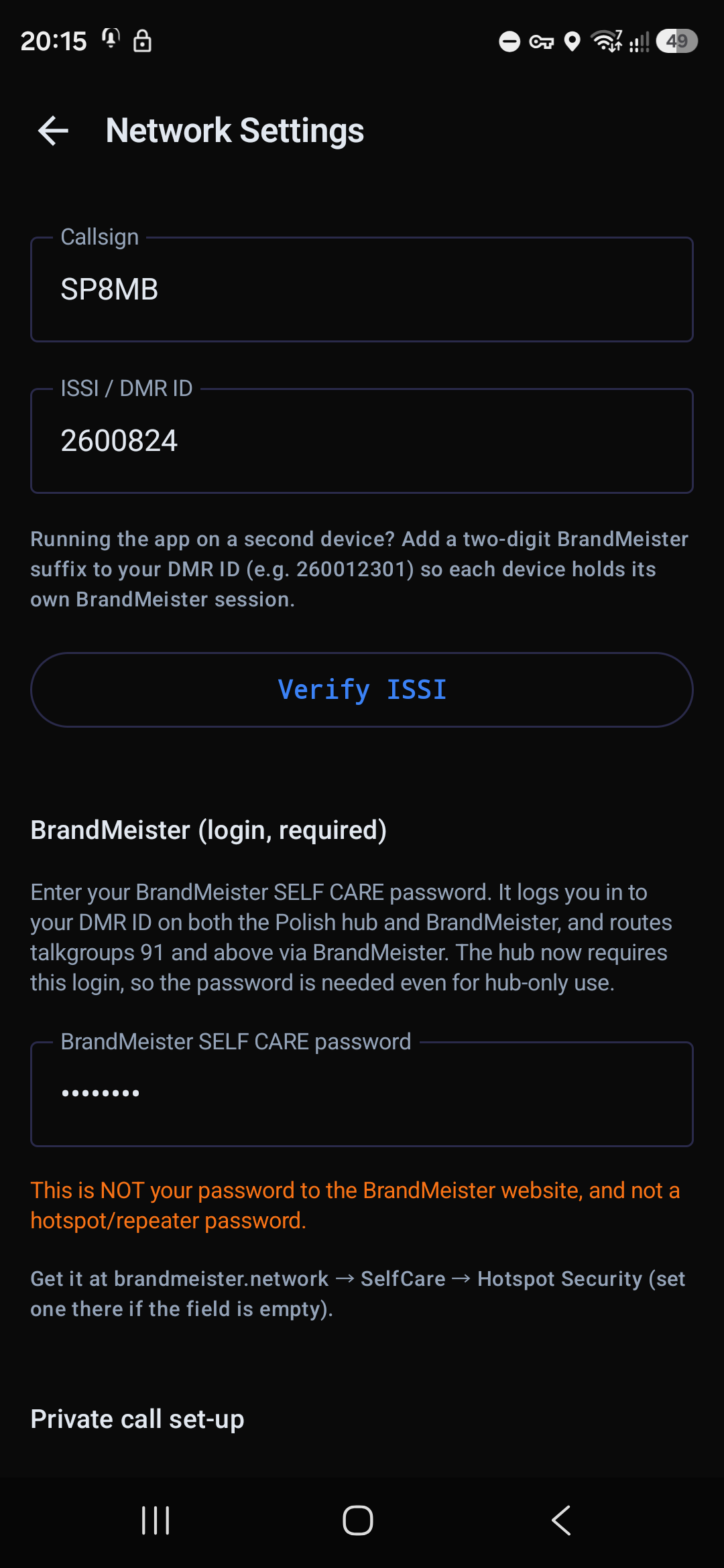
Open Settings → Network. There are three fields.
4.1 Callsign
Your callsign, e.g. SP8MB. It is how other users on the network see you.
4.2 ISSI / DMR ID
Your seven-digit number from radioid.net, e.g. 2600824. This is your identity across the whole network: private calls and messages reach you at this number.
The Verify ISSI button checks the radioid.net database to see whether the number matches the callsign, and says so plainly. If the database is unreachable, the settings still save.
BrandMeister suffix (optional). The field also accepts a number with a two-digit suffix, e.g. 260012301. It has one purpose: if you run the app on a second device, the suffix gives that device its own account at the gateway, so the devices stop stealing each other's session. On the network you are still the base number — the suffix appears only when logging in to BrandMeister.
The suffix must exist in SelfCare as an additional device, otherwise the login is refused. The password is the same as for the base number.
4.3 BrandMeister SELF CARE password
The password from chapter 3. The field is masked. The app warns right next to it that this is not the website or hotspot password.
4.4 Private call set-up
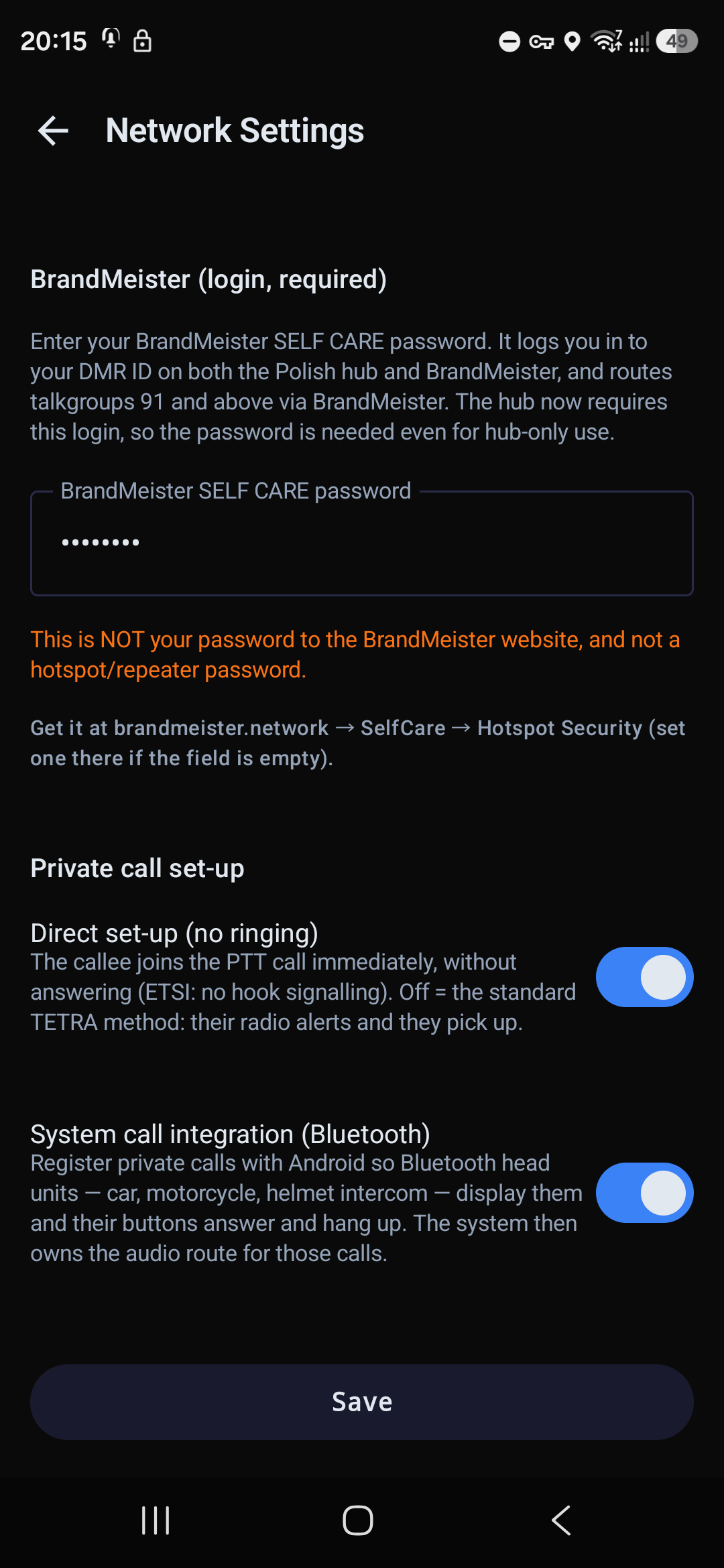
- Direct set-up (no ringing) — when on, the callee joins the PTT call immediately, without answering. When off, the standard TETRA method applies: the callee's radio alerts and they pick up.
- System call integration (Bluetooth) [Android] — registers private calls with the system, so Bluetooth head units (car, motorcycle, helmet intercom) display them and their buttons answer and hang up. The system then owns the audio route. [iPhone] the same works with no switch at all — private calls always go through the system call screen (CallKit), including the lock screen and the car.
Finally press Save — the app logs in again with the new details straight away.
5Step 3: permissions
On first launch the phone asks for a few permissions. The microphone is mandatory — without it you will hear traffic but cannot transmit.
| Permission | What for | Mandatory |
|---|---|---|
| Microphone | transmitting (PTT) | yes — without it the app falls back to listen-only |
| Notifications | incoming calls and SDS | in practice yes |
| Location | sharing your position on the map | no — only if you enable GPS |
| Bluetooth | wireless PTT button, headsets | no — only if you use them |
| Local network [iPhone] | connecting to the hub | yes |
| Start at boot [Android] | rejoining the network after a phone restart | no |
[Android] Separately, and this genuinely matters: turn off battery optimisation for TetraPoland. The app shows this in Settings as Background operation — if the card says the system may suspend it, tap it and grant the exemption. Without it the connection will drop whenever the screen goes off. Details in chapter 17.
6Step 4: checking that you are on the network
Go back to the main screen. Under the title bar there are two status lines, and they answer the whole question.
| Message | Meaning |
|---|---|
| Connecting… / Authenticating… | logging in — normal for a few seconds |
| Connected to HUB TetraPoland | ✅ you are on the network (after the dot, the transport in use, e.g. QUIC) |
| BrandMeister: connected | ✅ the BrandMeister gateway works too |
| Enter your DMR ID and SELF CARE password in Network settings | the fields are empty — back to chapter 4 |
| Login refused — check the SELF CARE password | see 3.1 and the note about five minutes |
| Disconnected | no Internet, or the hub is unreachable |
A second, stronger proof: tap the Online users icon in the top bar.
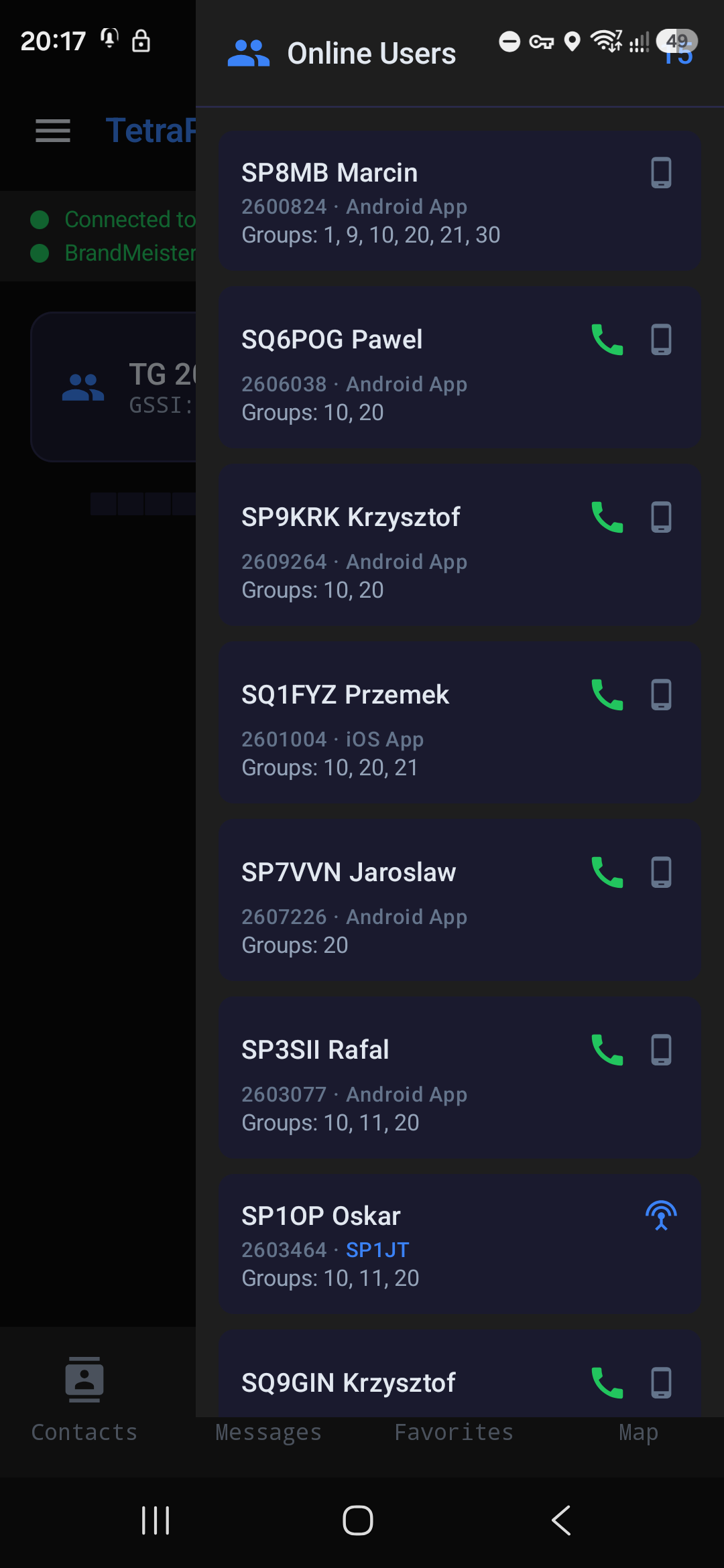
Each entry shows the callsign, the number, the kind of client (Android App, iOS App, or the name of the station a radio works through) and the talkgroups they are listening to. The icons on the right call them straight away, by private call or message. If you can see yourself and others here, you really are on the network.
7The main screen
This is the screen you live on.
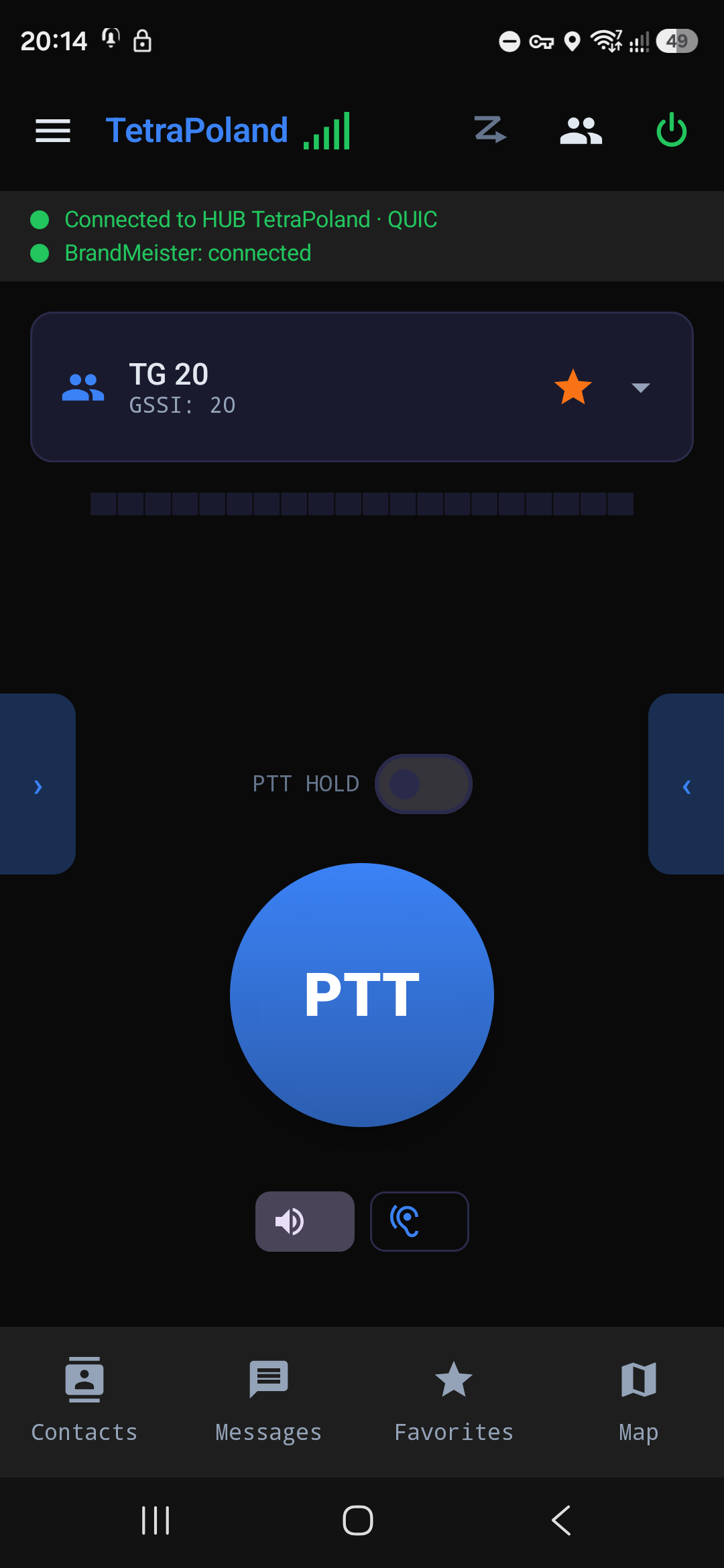
The top bar, from the left: the menu (☰), the app name with the quality indicator (green bars), and on the right three icons — scan (on/off), online users and log out of the network (the green power symbol).
Two status lines below: hub and BrandMeister, described in chapter 6.
The talkgroup card — name and GSSI number. The star marks the group as a favourite; the arrow on the right opens the full list.
The bar under the card is the audio level meter — it moves when somebody transmits, or when you do.
PTT HOLD — the latch. With it off you hold the button down to transmit. With it on, one press starts transmitting and the next one stops — handy for a longer turn.
PTT — the big button in the middle.
Speaker / earpiece — the two buttons under PTT switch the audio output.
The ‹ and › arrows at the screen edges step to the previous and next favourite talkgroup without opening the list.
The bottom bar: Contacts, Messages, Favorites, Map.
The same screen on iPhone — the layout is identical, element for element:
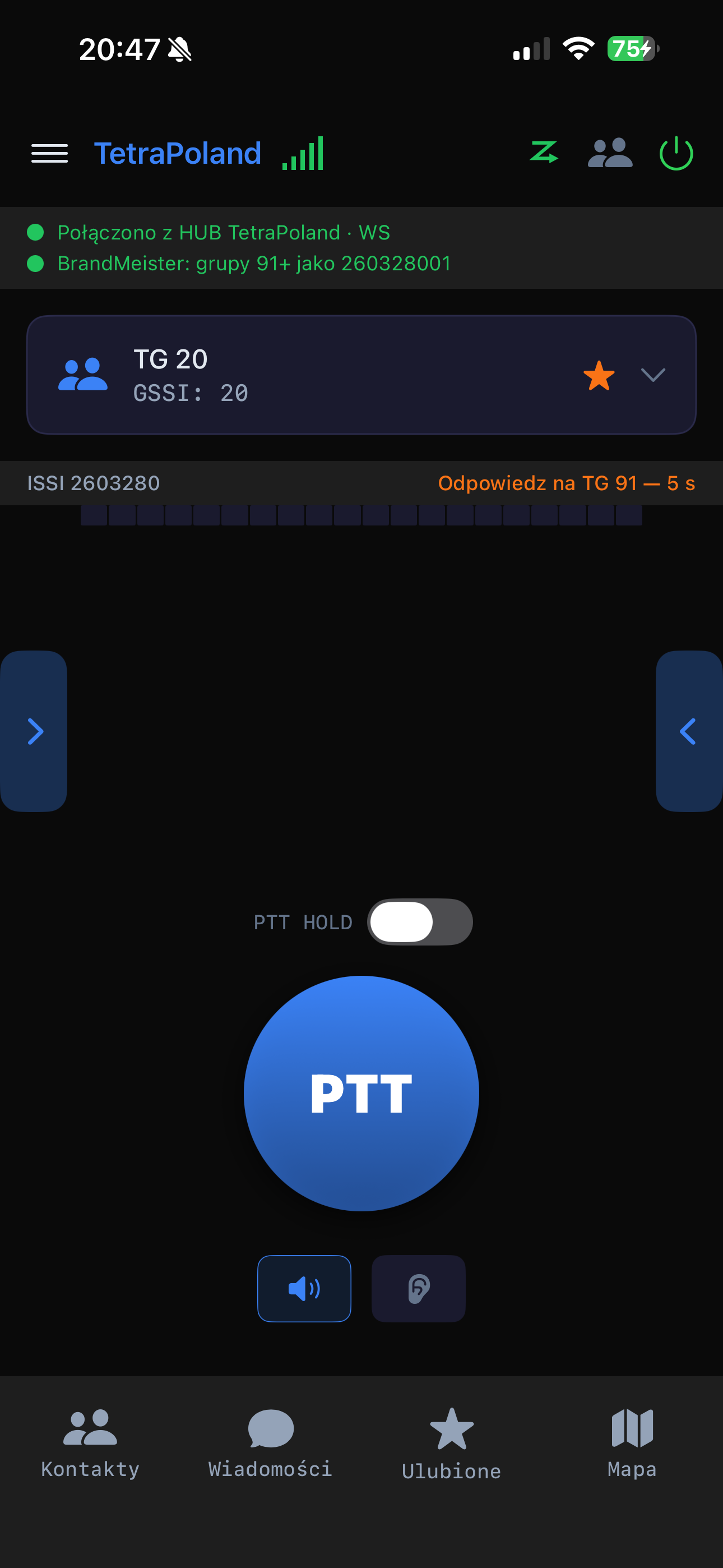
(The phone in the iPhone screenshots runs the Polish interface; switching the app to English changes the wording, not the layout.)
Two things on this shot are worth noticing. First, the BrandMeister line shows a number with a suffix (260328001) — this device has its own account at the gateway (4.2). Second, the amber "Odpowiedz na TG 91 — 5 s" ("Reply on TG 91 — 5 s") is the talkback window counting down: for those five seconds, pressing PTT replies on the scanned group rather than on the one you are standing on (10.2).
7.1 How to transmit
- Select a talkgroup.
- Press and hold PTT (or press once if you turned PTT HOLD on).
- Wait a moment until the button switches to transmitting — only then speak. The first press after launching the app is a fraction of a second slower, because that is when the audio path wakes up.
- Finish speaking and release.
If somebody else is transmitting at that moment, the app tells you so — only one person holds the floor on a talkgroup.
7.2 What receiving looks like
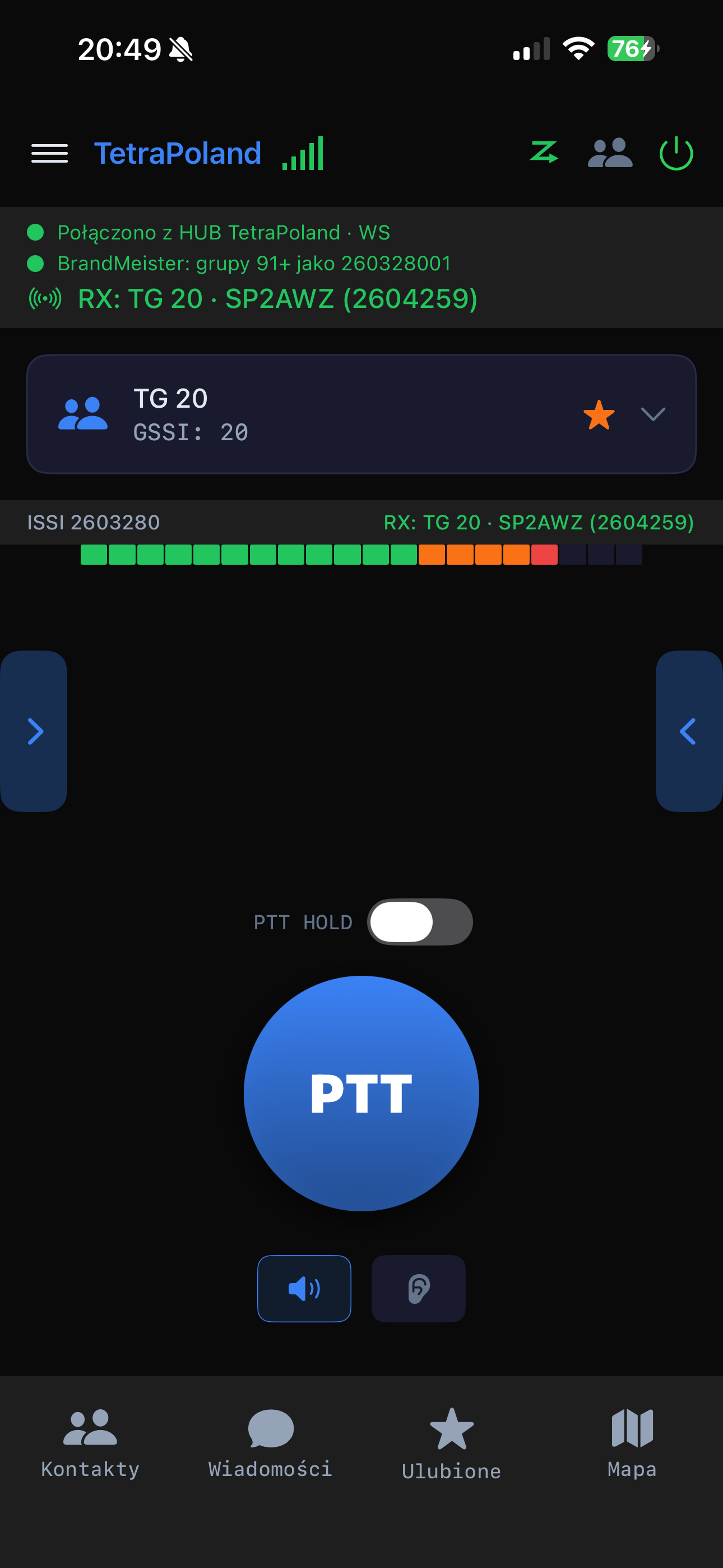
When somebody transmits, a third line appears under the status lines: RX, the talkgroup number and the caller's callsign (or a bare ISSI if you do not have them in contacts — see 12.1). The same is repeated in the strip above the level meter, and the meter moves with the speech.
[Android] The on-screen PTT button can be hidden (Settings → On-screen PTT button), which makes sense on a radio with a hardware PTT.
8Menu and call history
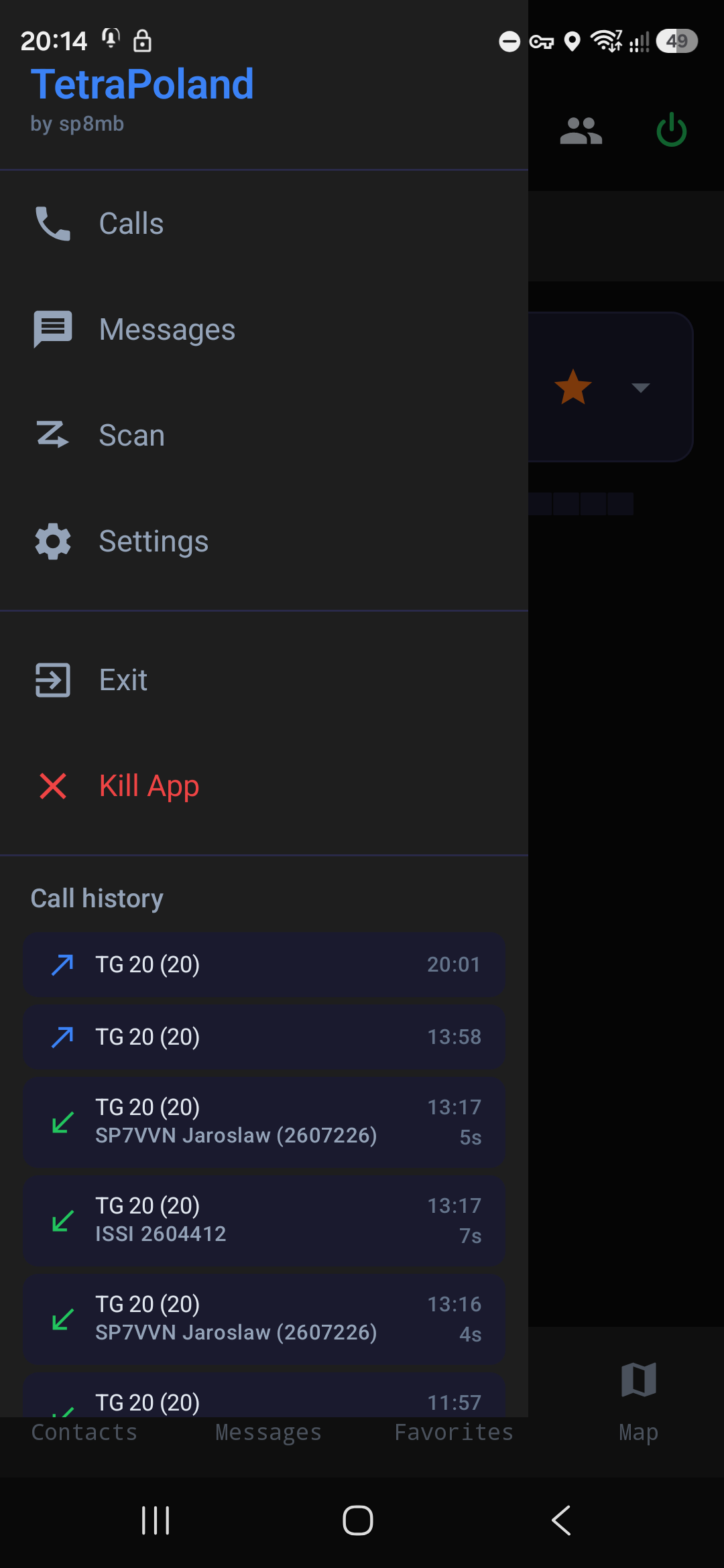
The menu (☰, top left) leads to Calls, Messages, Scan and Settings, and below that shows the call history: the talkgroup or the caller, the time, the duration and a marker for missed calls.
[Android] At the bottom of the menu there are two ways out: Exit — disconnects and closes the app properly — and Kill App, an emergency stop.
[iPhone] There is no exit and there will not be one: iOS does not let an app close itself. There is a Disconnect instead, which releases the hub session at once; you close the app itself from the app switcher.
9Talkgroups — selection, favourites, the 1–90 and 91+ split
9.1 Selecting a talkgroup
Tap the arrow on the talkgroup card. You get a searchable list — by name and by GSSI number.
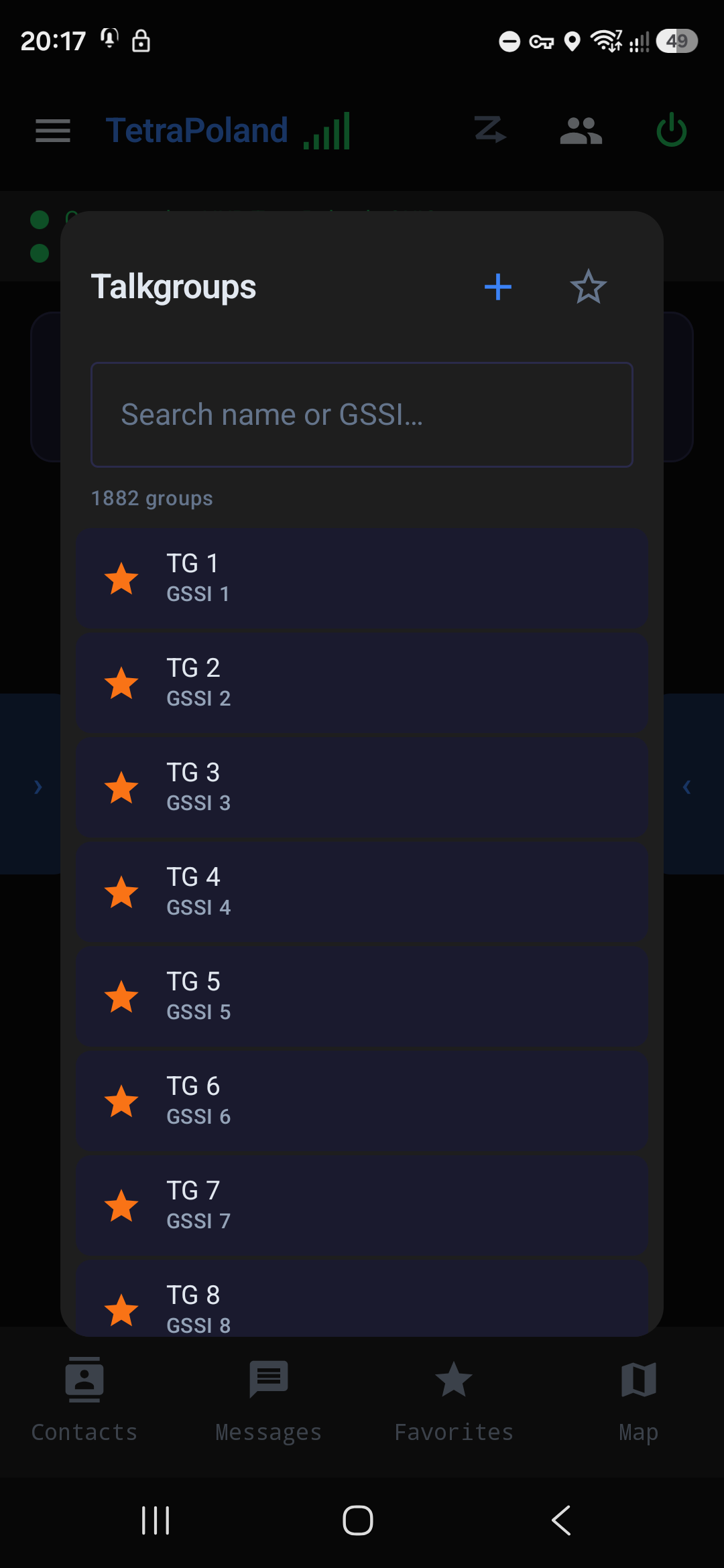
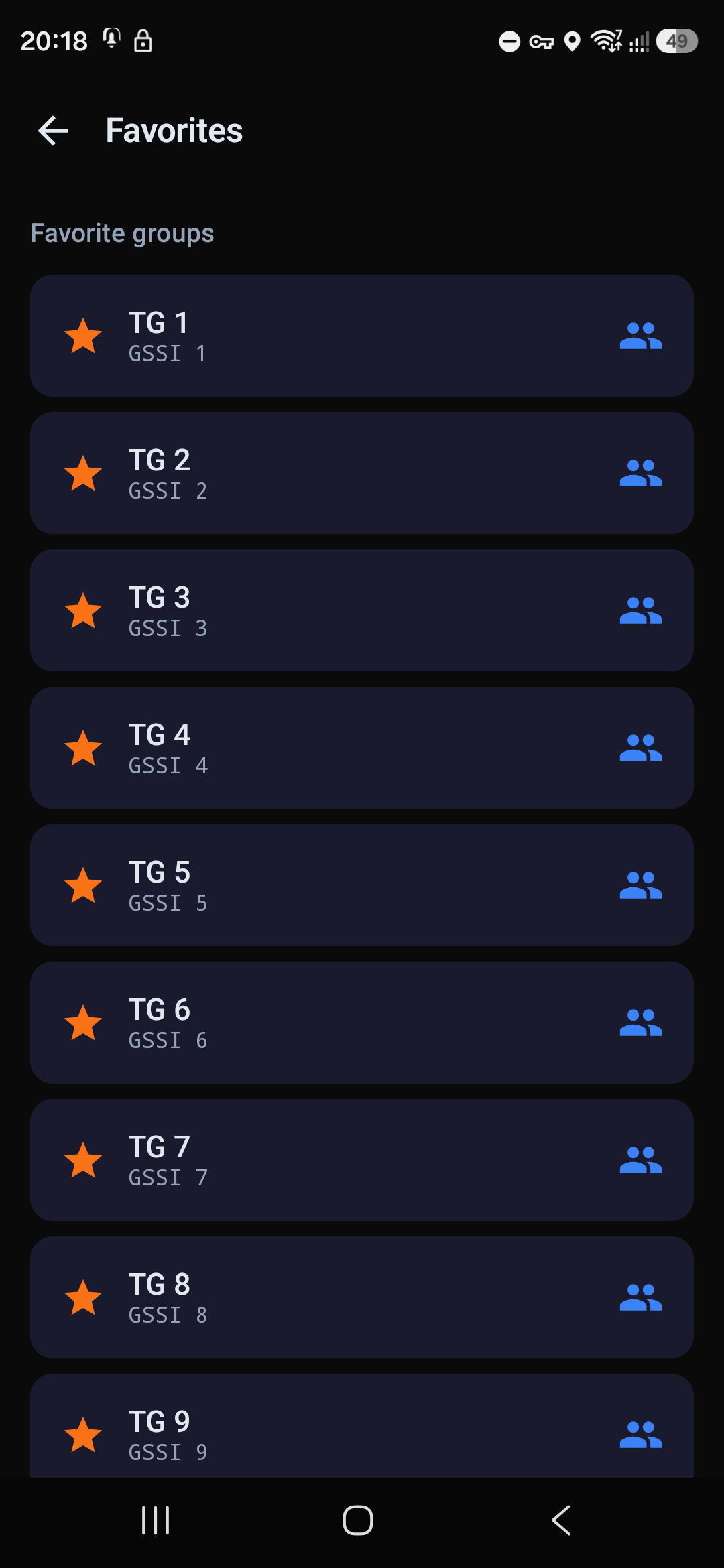
The star marks a group as a favourite. The + button at the top adds a group that is not on the list (you type its number), and the star next to it filters the list down to favourites only.
Favourites have their own screen — Favorites on the bottom bar:
9.2 ⚠️ The split you have to know
This is the most important thing on the whole network, and the only one that catches people out:
| Group numbers | Where they go | What that means |
|---|---|---|
| 1–90 | the TetraPoland hub | our own groups, local to this network |
| 91 and above | BrandMeister | worldwide DMR talkgroups, e.g. 260 (Poland) |
The app handles both directions at once and switches between them by itself — you pick a group and it knows where to route it. But:
Groups 91 and above need a working BrandMeister login. If the status line shows a BrandMeister problem, groups 1–90 keep working normally while the higher ones go silent — and nothing in the interface tells you that is why. Always check the status.
10Scanning
Scanning lets you listen to several talkgroups while standing on one. It is configured in two places, and it helps to know which is which.
10.1 Menu → Scan: what gets scanned
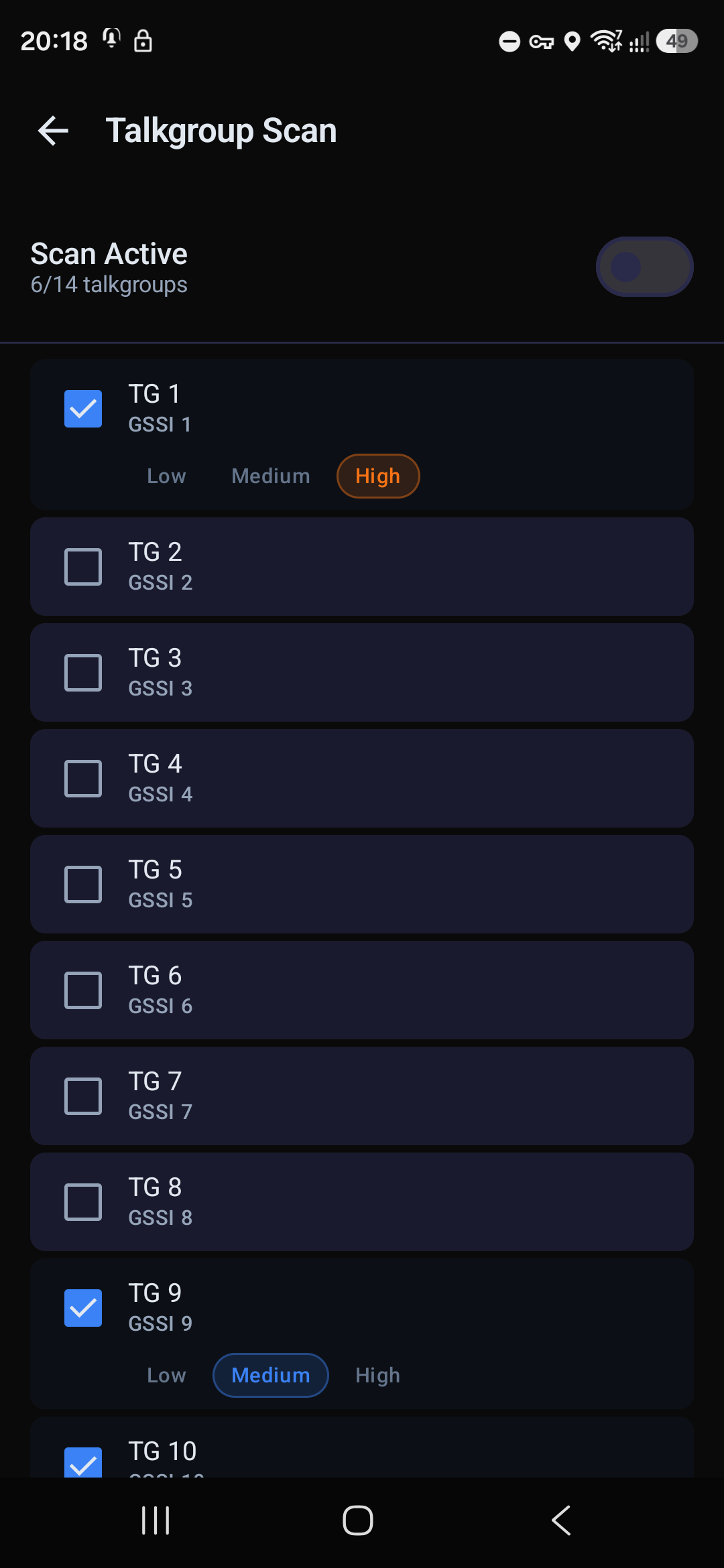
At the top, the Scan Active switch (the scan icon on the main screen does the same), and below it the list of your talkgroups. Each has a checkbox and a priority: Low, Medium, High — with two transmissions at once, the higher priority wins.
10.2 Settings → Scanner: how it behaves
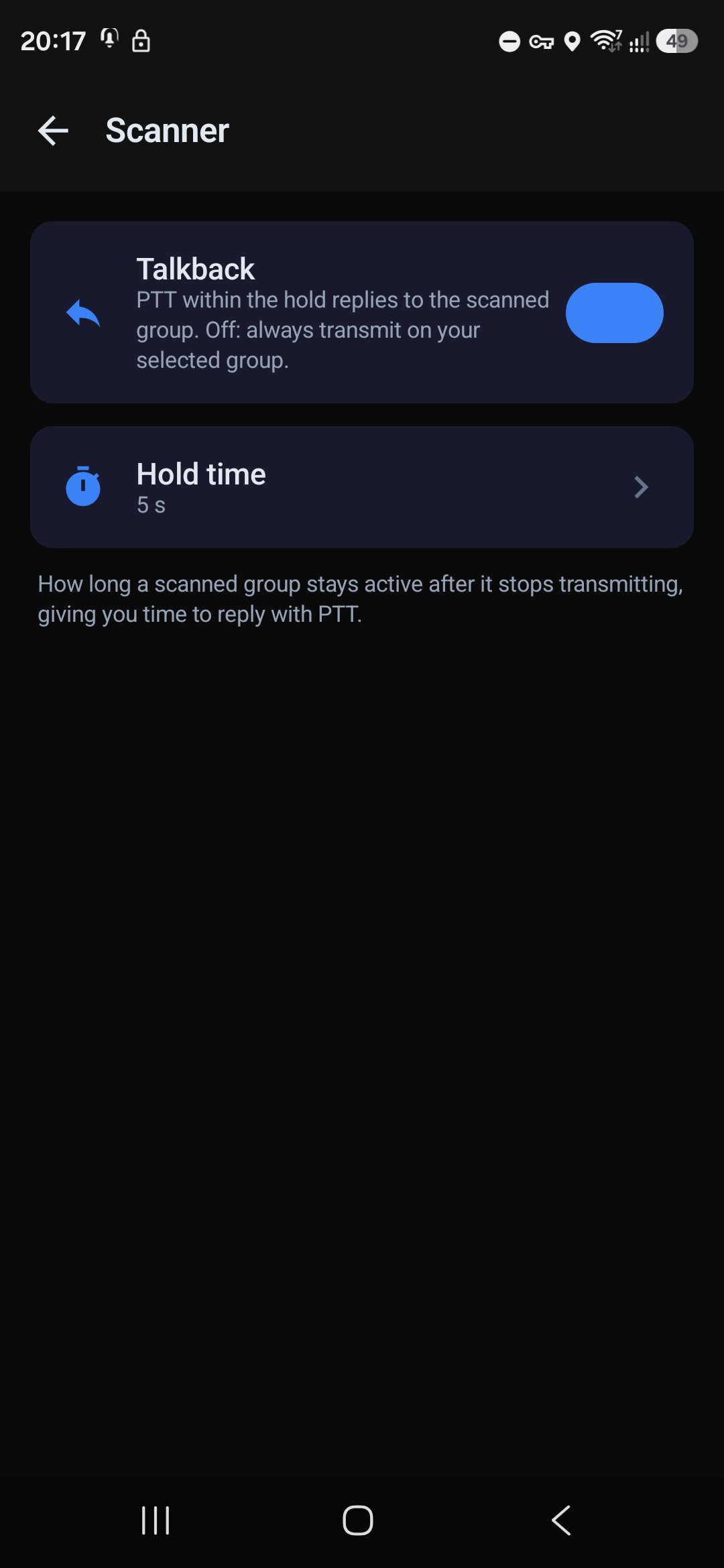
- Talkback — when on, pressing PTT within the hold time replies on the group you just heard. When off, you always transmit on your own selected group.
- Hold time — how many seconds a scanned group stays active after its transmission ends. That is the window in which talkback works.
While receiving from a scanned group, the main screen shows the group number next to the caller, so you always know where you are replying:
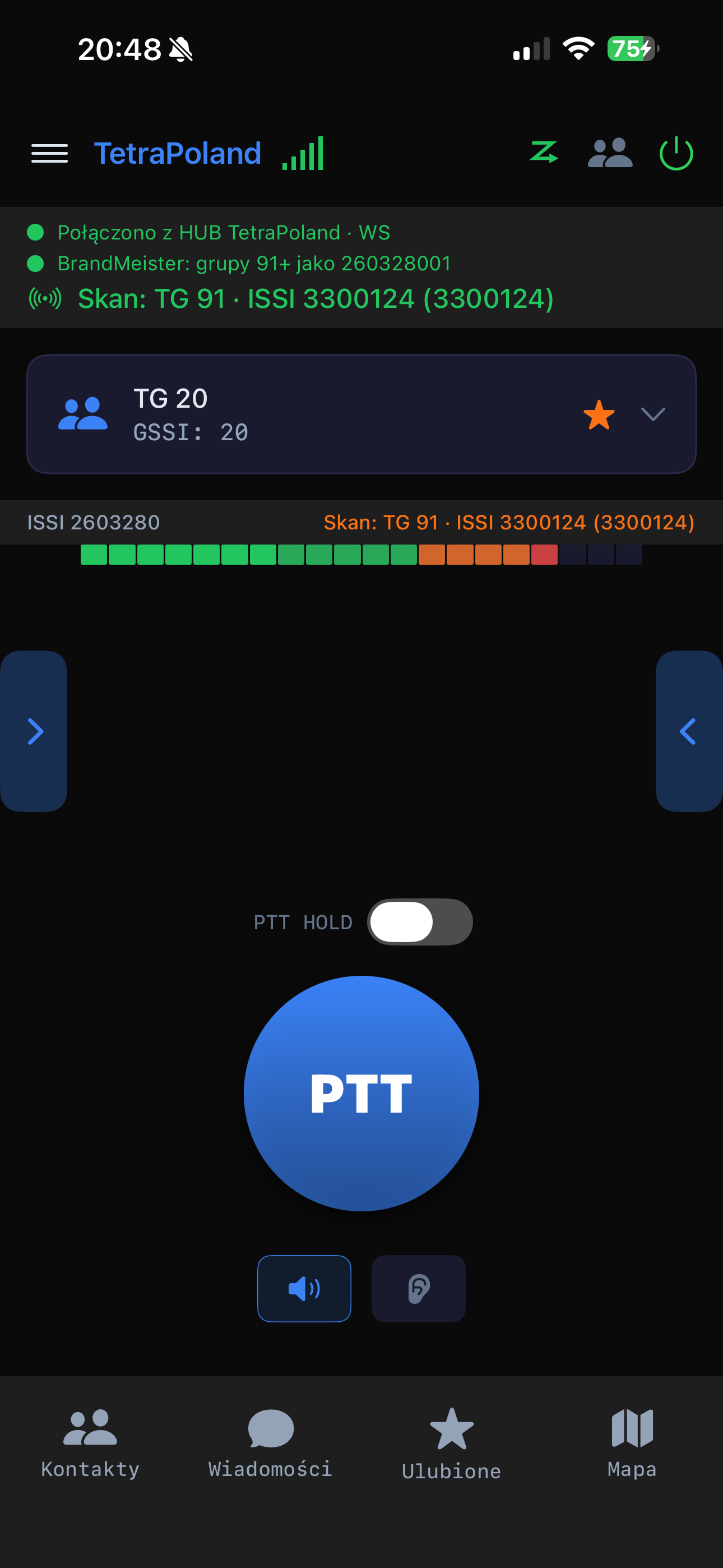
Note the word Skan ("Scan") in front of the group number — that is how you tell a transmission on a scanned group from one on the group you are standing on, which says RX. When it ends, the same place shows the countdown of the reply window.
11Private calls
A one-to-one call, in two flavours:
| Kind | How it works |
|---|---|
| Duplex | like an ordinary phone call — both of you speak at once |
| PTT (simplex) | like a radio — in turns, with the button |
How to call: from Contacts, from Favorites or straight from the Online users list — there is a handset icon in all of them. You can also just type an ISSI.
How to answer: the phone shows an incoming call screen — on Android you answer by swiping up, on iPhone through the system call screen (which also works on the lock screen and in the car).
Things that happen by themselves:
- A call rings for 45 seconds and hangs up if nobody answers.
- A PTT call with no traffic for 20 seconds hangs up by itself, so nothing is left hanging.
- A private call takes priority over group traffic — you will not hear talkgroups during one.
If the person you call is offline, the call ends with no message at all — the call screen flashes and disappears. It looks exactly like a fault, and it is not one. Before you go hunting for a problem, check whether they are on the Online users list. (A known limitation, see chapter 21.)
12Contacts and the DMR database import
Contacts (bottom bar) is the list of people: name, callsign, ISSI. You can search by any of them. The star makes a contact a favourite, and from a contact you can place a duplex call, a PTT call or send a message. Contacts can also be added by hand.
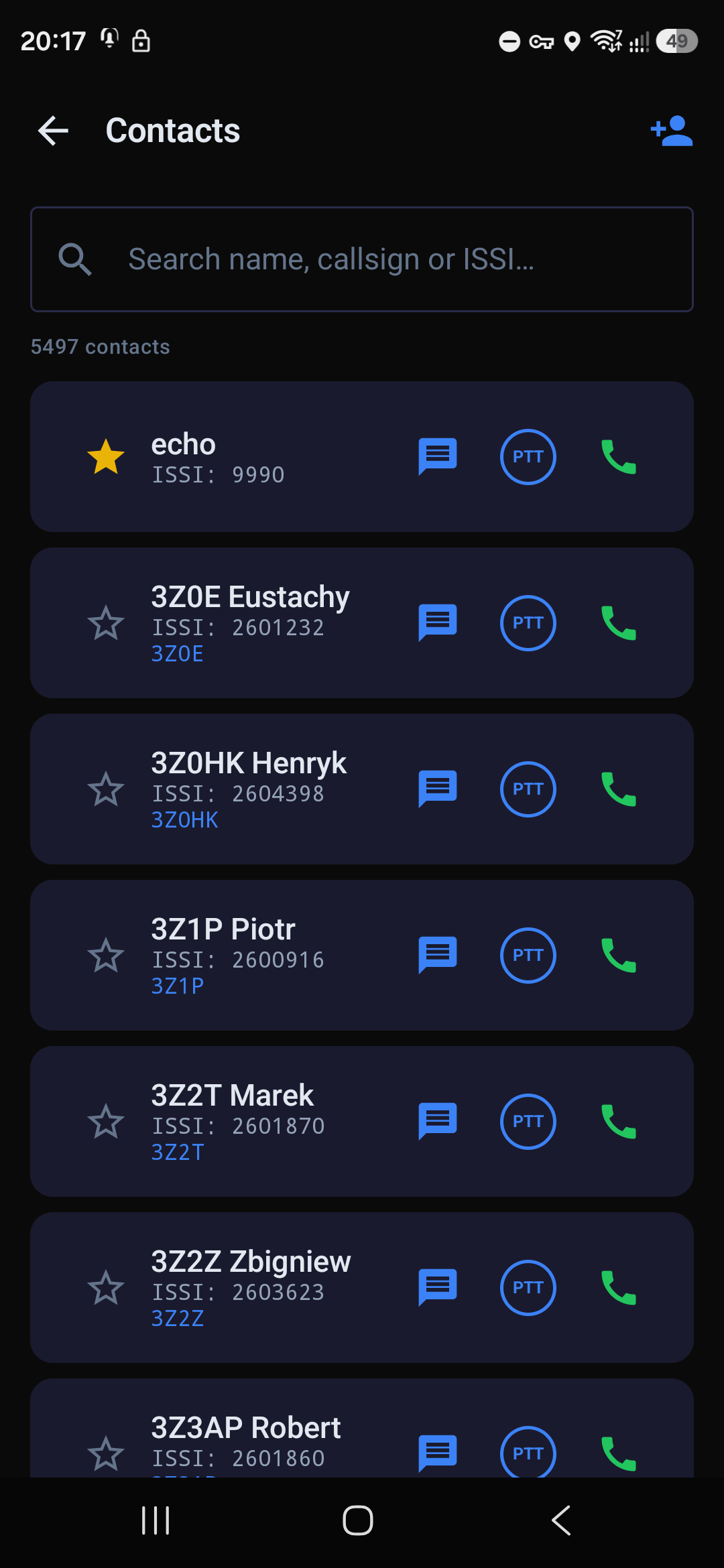
12.1 Importing the DMR database
Nobody has to be typed in by hand — Settings → Import contacts & groups downloads ready-made data from the network:
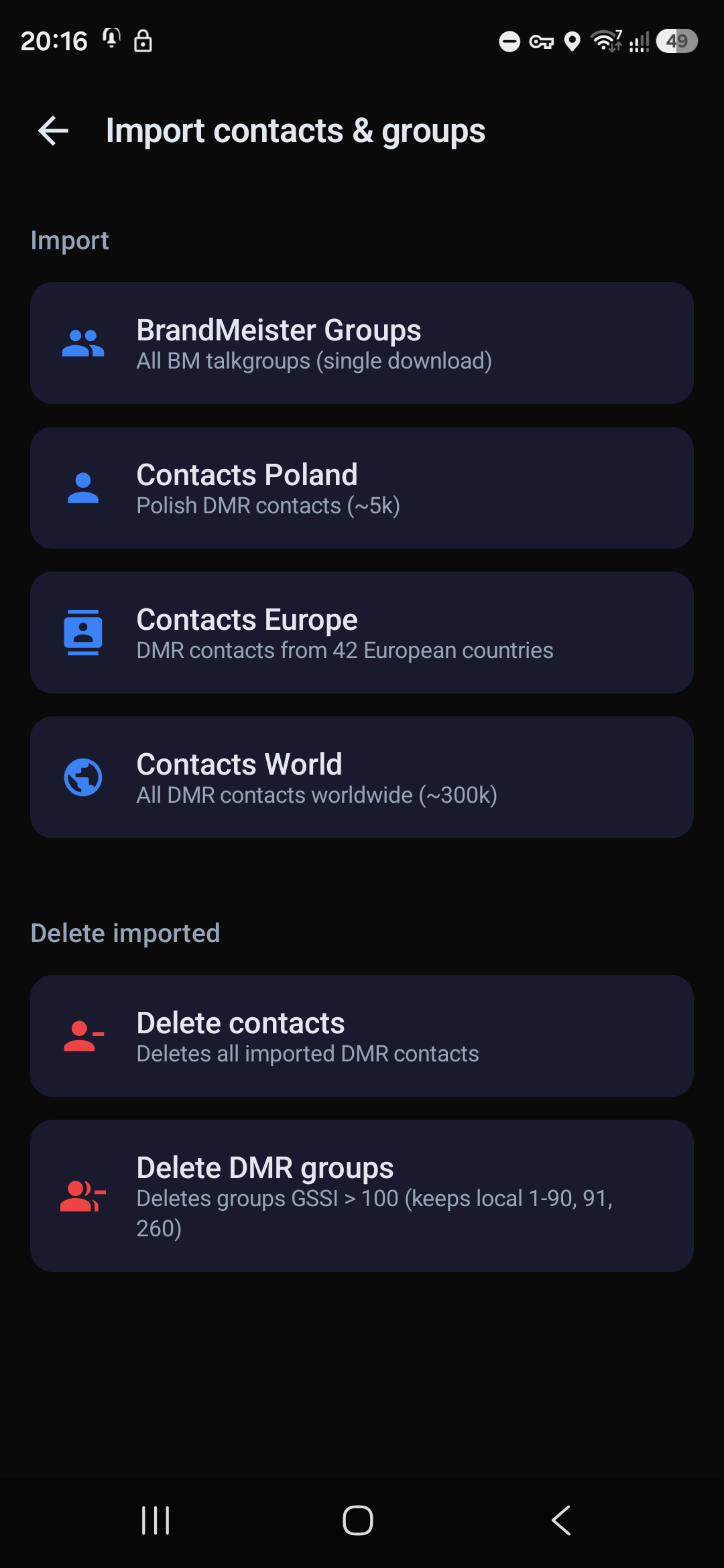
| Item | What it downloads | How much |
|---|---|---|
| BrandMeister Groups | every BM talkgroup from api.brandmeister.network | ~3000, single download |
| Contacts Poland | Polish DMR users from radioid.net | ~5k |
| Contacts Europe | 42 European countries | tens of thousands |
| Contacts World | every DMR user worldwide | ~300k |
The import shows progress as it runs. Entries are keyed by DMR ID, so importing again does not create duplicates — it refreshes the data.
After the import, contacts show up everywhere a bare number used to be: in the call history, in the online users list and in message threads the number turns into a callsign and a name.
The World import is hundreds of thousands of records — it takes a while and takes up space. For ordinary use Poland is plenty.
Deleting (same section) removes imported contacts or groups. Groups 1–90 always stay — they are the fixed TetraPoland talkgroups, they exist on the hub regardless of the import, and there is no way to restore them other than typing the numbers in by hand.
13SDS messages
Short text messages — to a person (ISSI) or to a talkgroup (GSSI).
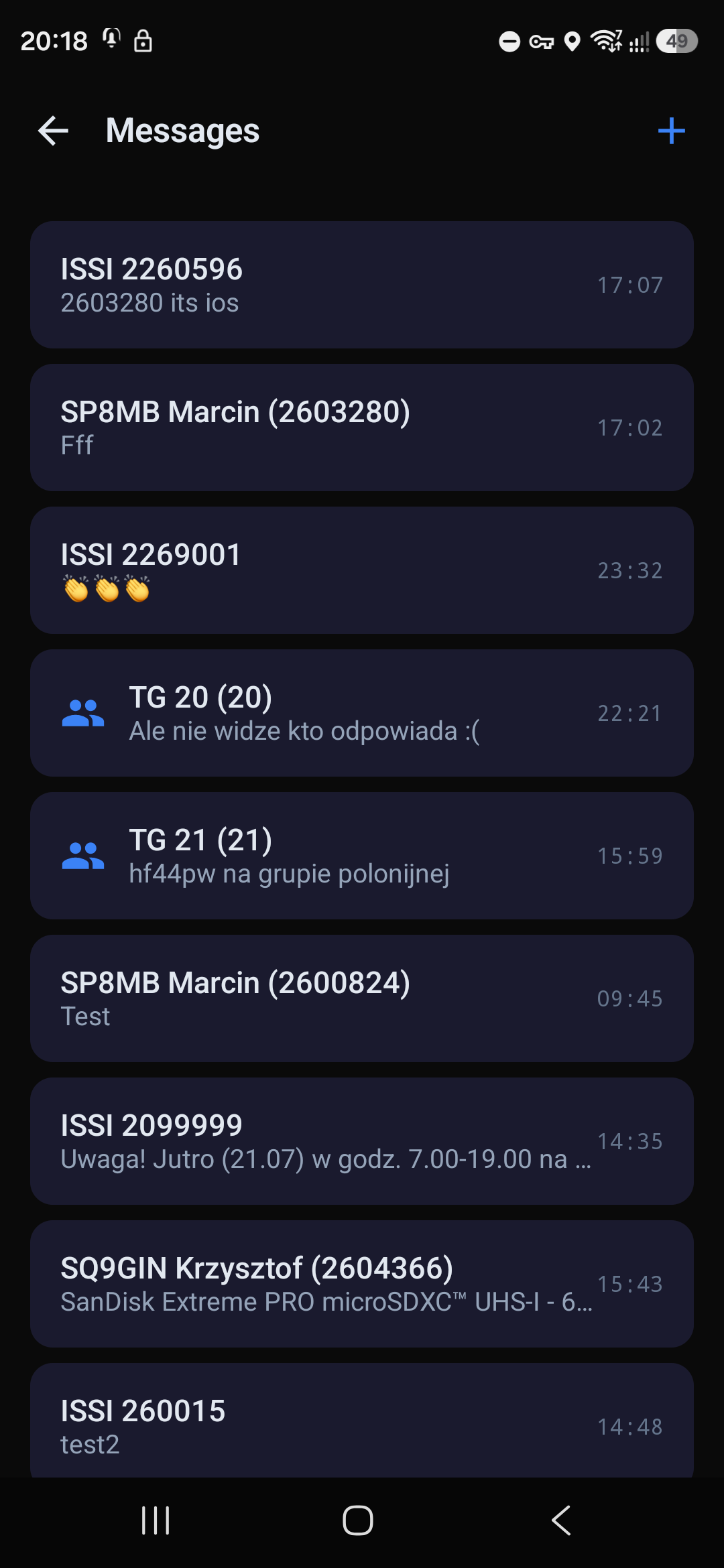
- Messages (bottom bar) shows threads, one per correspondent and one per talkgroup. The + button at the top starts a new message.
- In a group thread every message shows its sender.
- Sent messages carry a delivery mark.
- A message or a whole thread can be deleted — deletion is local to this phone.
[Android] Above the text field there are quick replies, one tap each: Roger, Copy, Standby, En route, On scene, Busy, Call you back.
14Map and GPS position
Map (bottom bar) shows the positions of users, radios and stations on the network.
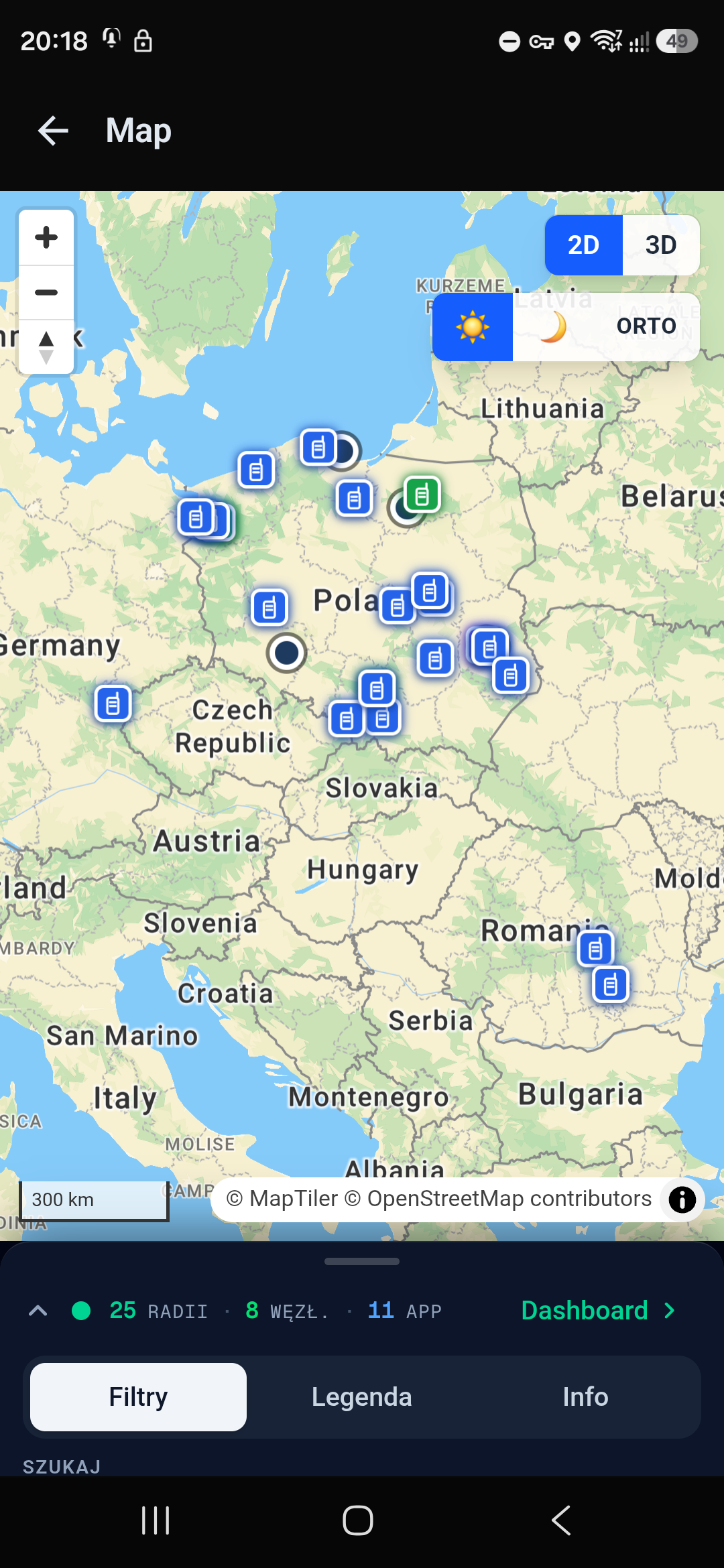
At the bottom there is a counter of what is visible (radios, nodes, apps) and the Filters, Legend and Info tabs. The map can be tilted between 2D and 3D and switched to aerial imagery.
The map is a web page embedded in the app and needs its own Internet connection. Radio traffic works independently of it — if the map fails to load, that does not mean you lost the network.
14.1 Your own position
Settings → GPS position decides whether others can see you.
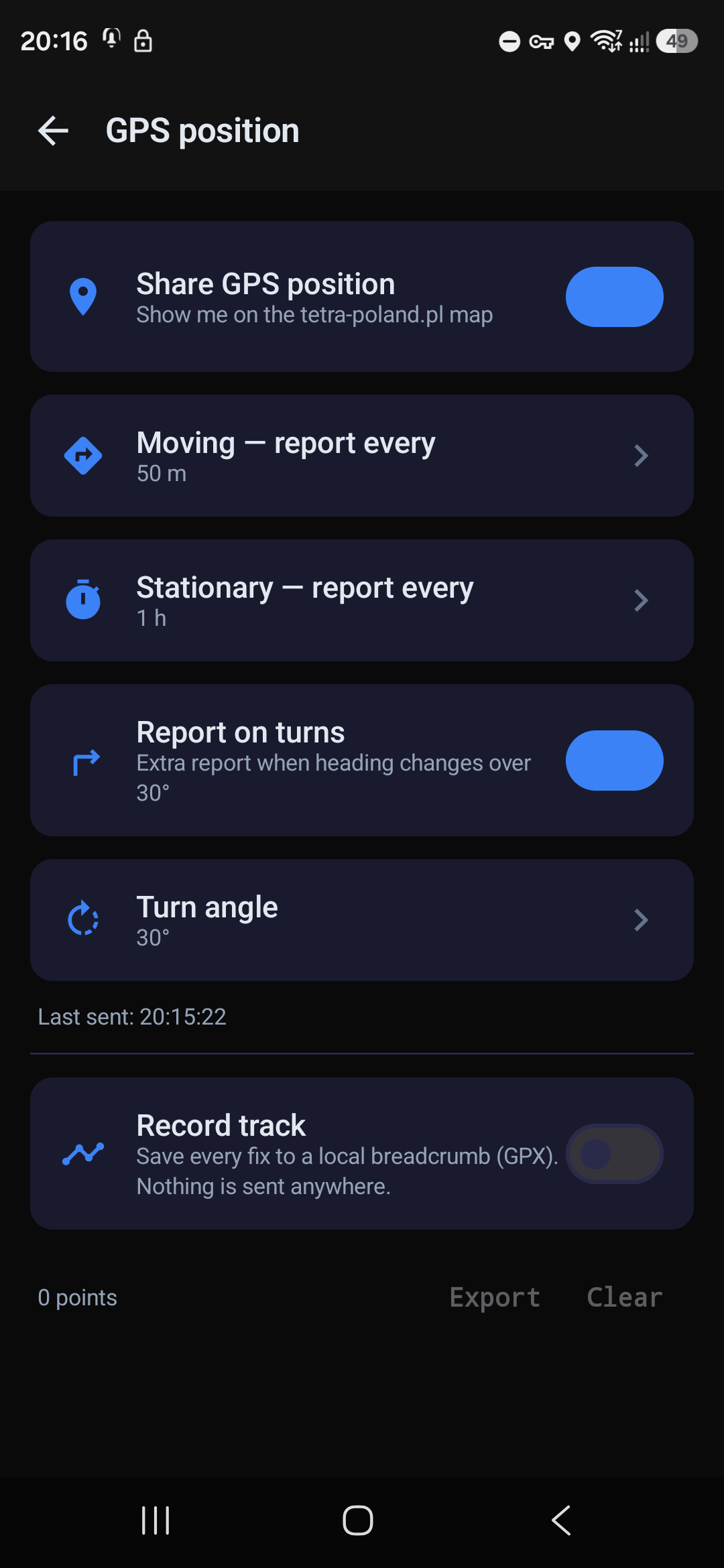
- Share GPS position — off by default. Until you turn it on, the app sends your position nowhere.
- Moving — report every … metres, Stationary — report every … time: the rarer, the less battery and traffic.
- Report on turns and Turn angle — an extra report when your heading changes, so the trace on the map does not cut corners.
- Last sent — when the last position went out.
[iPhone] has this reduced to a single Smart-beaconing switch plus a frequency choice — it works the same way, only without the separate fields.
[Android] Record track — a separate function that saves every fix to a local GPX file. None of it is sent anywhere; the track can be exported or cleared.
15Audio
Settings → Audio.
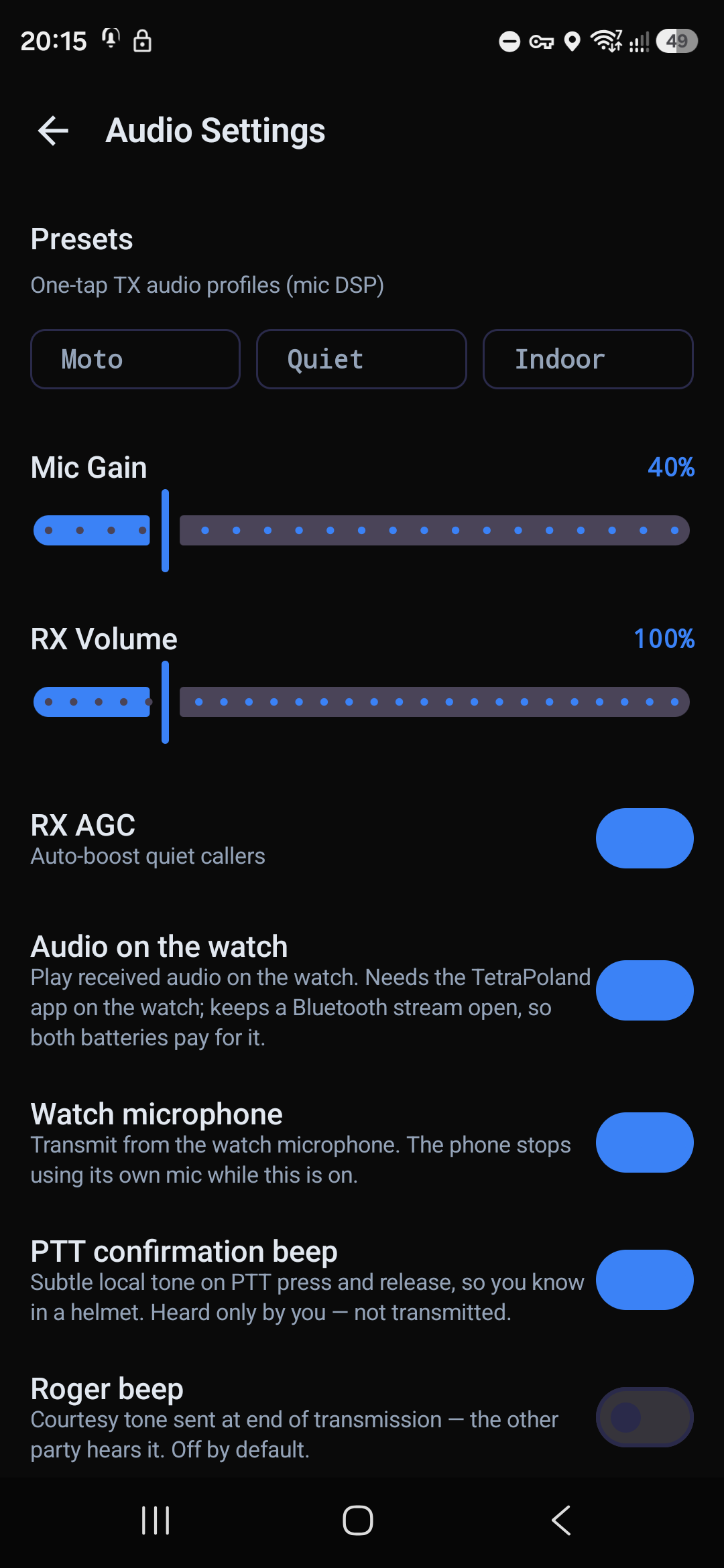
[Android] Presets — ready-made transmit profiles, one tap each: Moto, Quiet, Indoor. They set a whole group of microphone parameters for you.
The basics — enough for most people:
| Setting | What it does |
|---|---|
| Mic Gain | how loud you sound to others |
| RX Volume | how loud others sound to you |
| RX AGC | automatically boosts quiet callers |
| PTT confirmation beep | a short tone on press and release — only you hear it, it is not transmitted |
| Roger beep | end-of-transmission tone sent over the air — the other party hears it. Off by default |
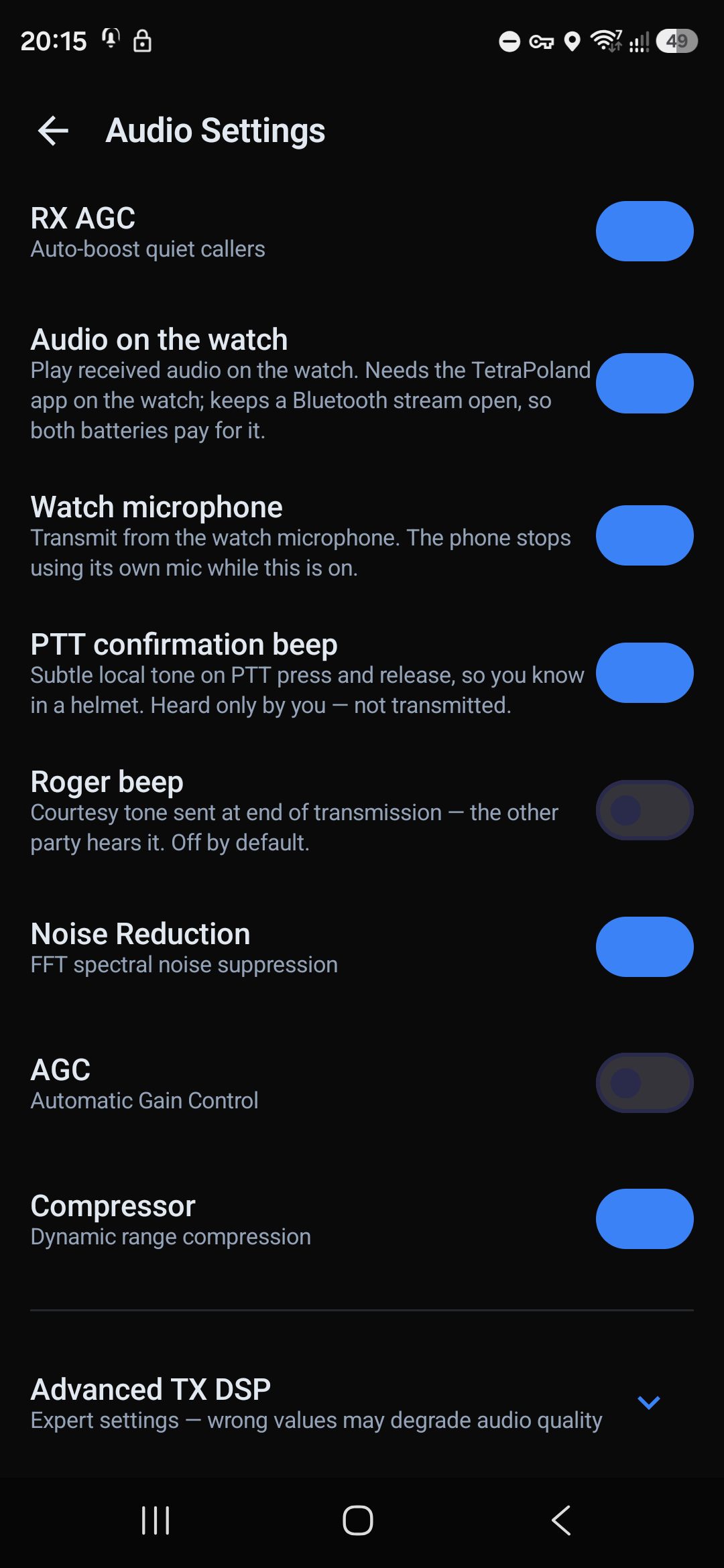
Processing (DSP) — quality helpers, all of which can be switched off:
- Noise Reduction — removes background noise from your voice (spectral, FFT).
- AGC — evens out the level of your voice.
- Compressor — flattens loudness differences.
[Android] Advanced TX DSP — pre-emphasis, AGC target level, compressor threshold and ratio, limiter ceiling. ⚠️ These are expert settings; wrong values will degrade the audio more than improve it. There is a reset-to-defaults button.
The audio output (speaker / earpiece) is switched fastest with the two buttons under PTT on the main screen.
[Android] Bluetooth SCO — captures the microphone from a Bluetooth headset (helmet, headphones) while transmitting, and frees the music profile in between. [iPhone] does the same automatically, with no setting.
16Hardware buttons and Bluetooth
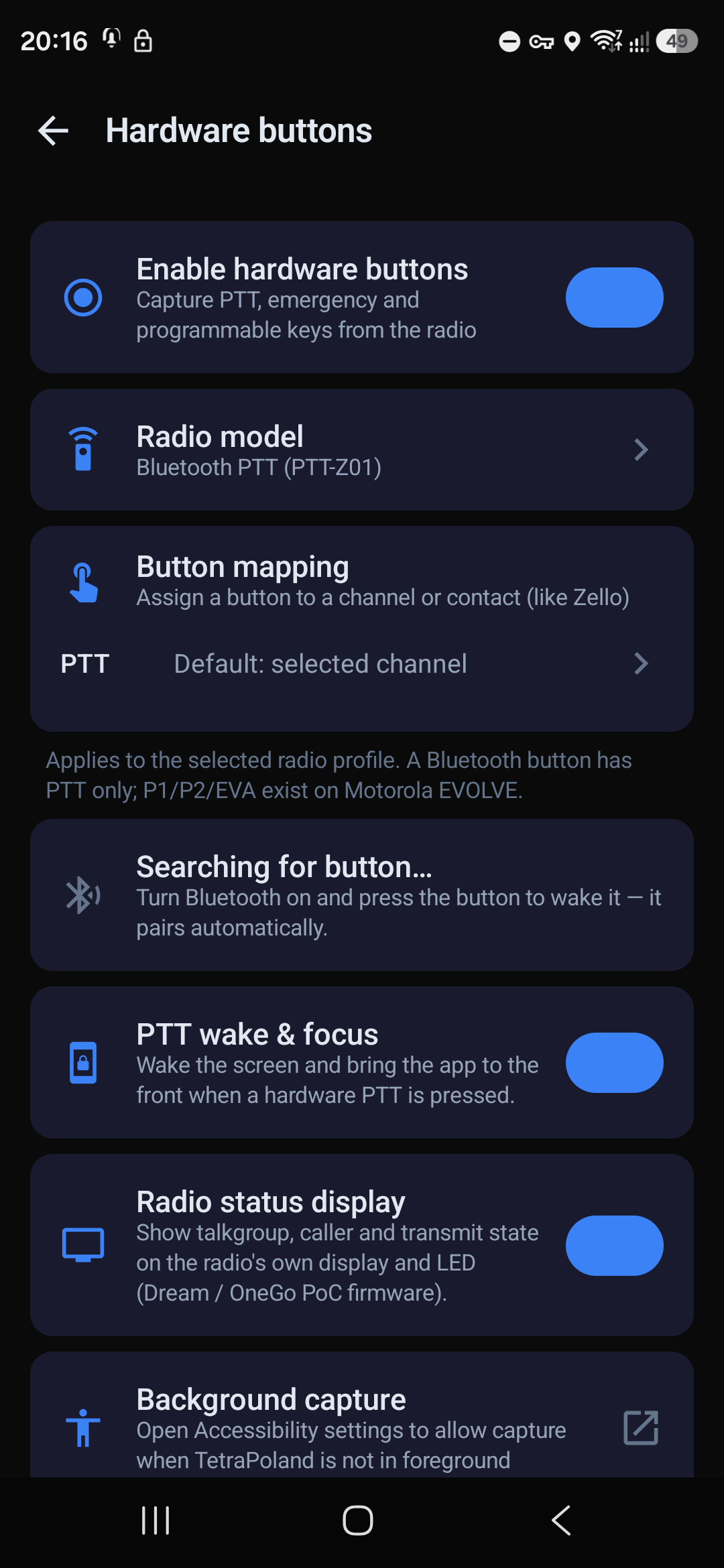
Settings → Hardware buttons.
16.1 The wireless PTT button (both platforms)
Radio model is where you pick the kind of button. Three families of Bluetooth LE buttons are supported: PTT-Z01, AnyTone / ELET and the generic HM-10.
Pairing: turn Bluetooth on, wake the button (usually a long press) and keep this screen open — the card then says Searching for button…, and shows the button's name once connected. After that the phone connects to it by itself, screen off included.
Do not pair such a button in the phone's Bluetooth settings — these buttons are not keyboards and will not appear there. The app connects to them itself.
A press transmits on the same talkgroup as the on-screen button, replying to a scanned group included. If the button disappears mid-transmission (flat battery, out of range), the app releases the floor by itself.
The button is kept separate from your headset — Bluetooth headphones keep working exactly as before.
16.2 [Android] PoC radios and physical keys
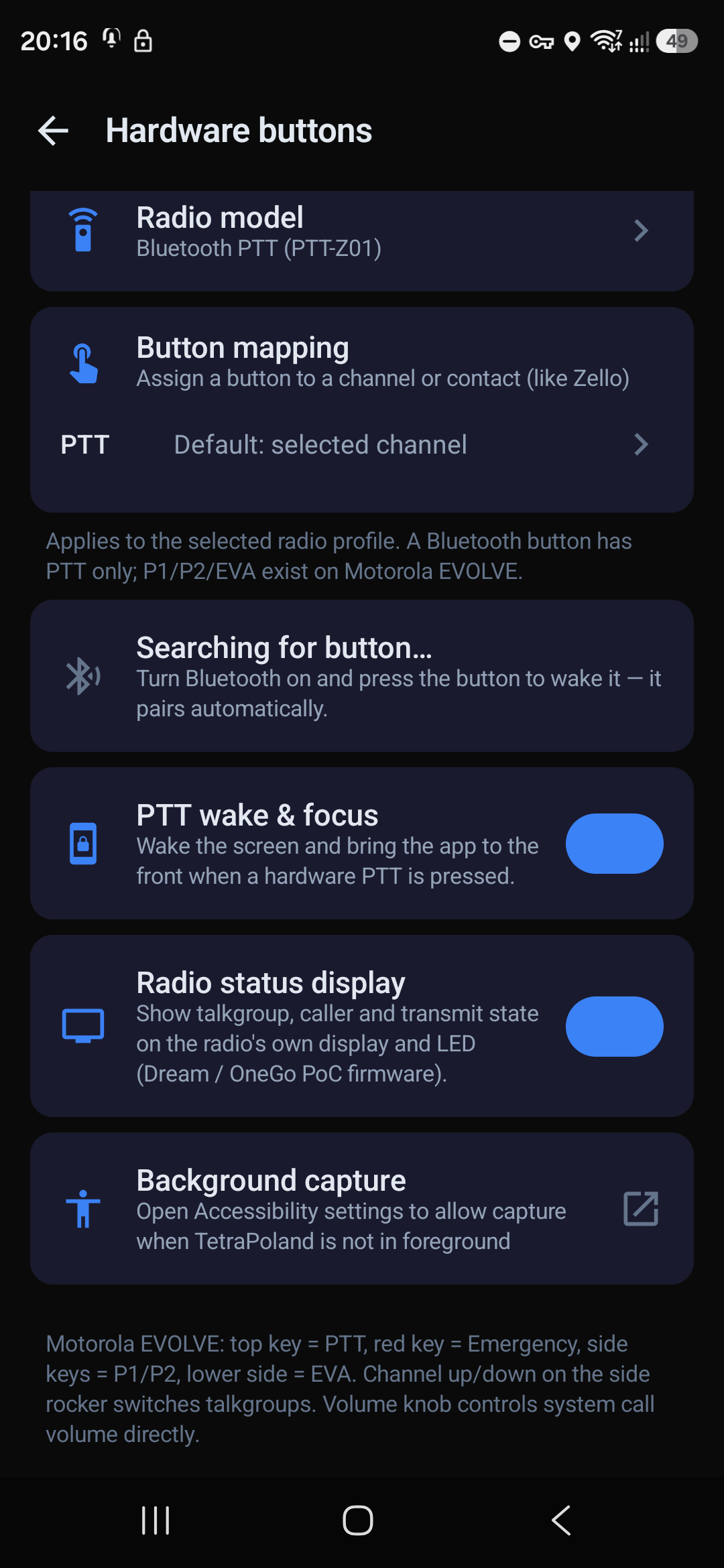
On Android the physical keys of a radio work too. Radio model offers ready profiles: Motorola EVOLVE (LEX L11), Hytera (PNC-class), HIROYASU HI-B8, and Other radio (learn the button).
Learning a key is the right answer for most hardware, because manufacturers do not publish their key codes. You tap a row in the list, then press the key on the radio, and the app remembers it. Three functions can be learned: PTT, channel up and channel down (the last two matter for a group knob, e.g. on the Hytera P50).
PTT broadcast — for radios that send a system broadcast instead of a key event. You enter the press action; the app derives the release action itself.
Button mapping — like Zello: a given key can transmit on a specific channel or call a specific person, regardless of what is selected on screen. By default PTT transmits on the selected channel.
PTT wake & focus — a hardware PTT press wakes the screen and brings the app to the front.
Radio status display — on Dream/OneGo firmware the app shows the talkgroup, the caller and the transmit state on the radio's own display and LED.
Background capture — for the keys to work when the app is not in front or the screen is off, some radios need Android's Accessibility service enabled. The app states plainly that it uses it for one purpose only: detecting button presses. It does not read screen content, does not record what you type, and nothing leaves the phone. It is optional — the on-screen button works without it.
16.3 ⚠️ [iPhone] What iOS does not allow
On iPhone only Bluetooth LE buttons work. Volume keys, Bluetooth keyboards and media remotes are delivered by iOS to the foreground app only — as a PTT they would be dead precisely when the phone is in your pocket. There is no way around it.
17Background operation and battery
The app has to stay alive in the background — otherwise you drop off the network when the screen goes off.
17.1 [Android]
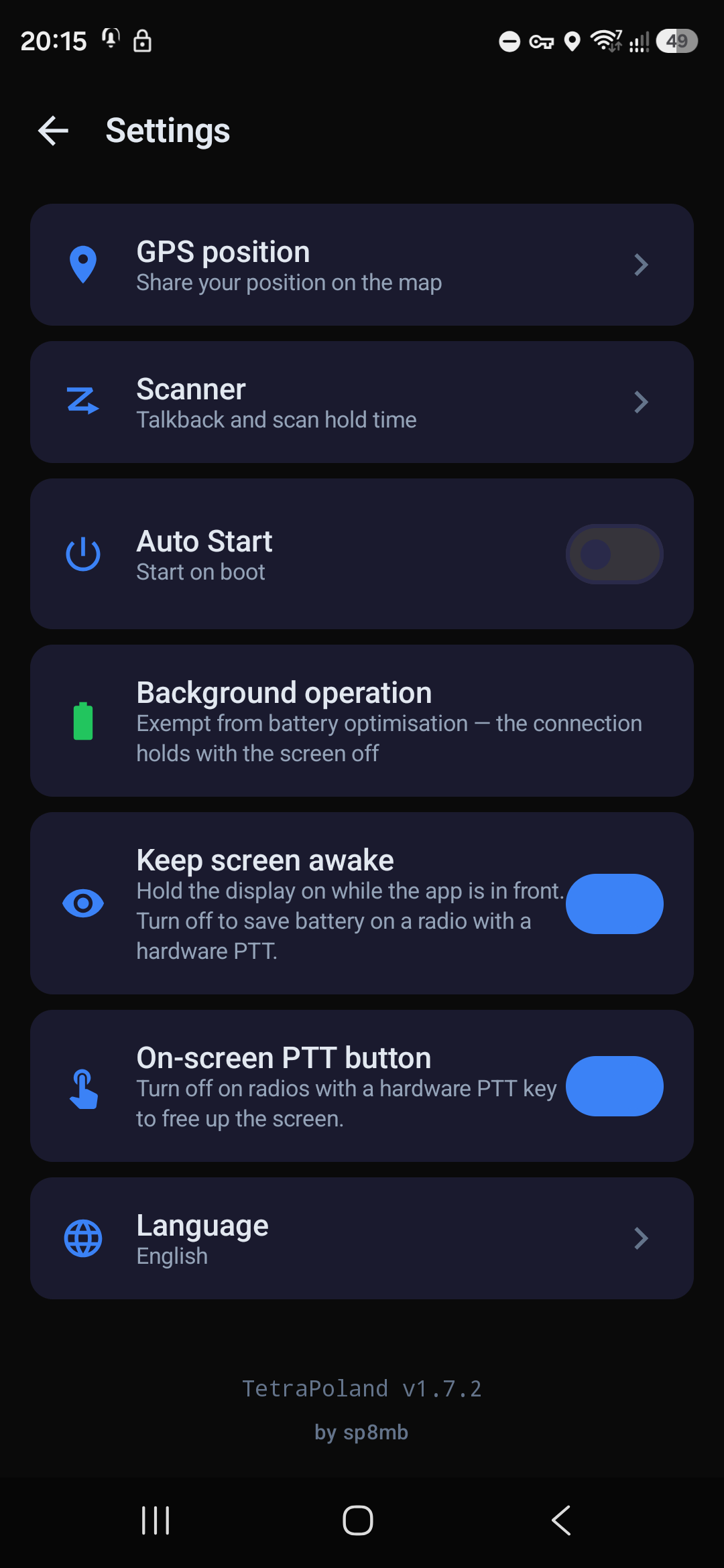
Turn off battery optimisation for TetraPoland. This is the single most important thing. The Background operation card says exactly where you stand:
- "Exempt from battery optimisation — the connection holds with the screen off" — good;
- "The system may suspend the app and drop the connection" — tap it and grant the exemption.
The app keeps a permanent background notification — that is what keeps it alive, and it cannot be hidden. Auto Start restores the connection after a phone restart.
Xiaomi, Huawei, Samsung and OPPO phones have extra battery savers beyond Android's own; if the app still drops out despite the exemption, look for them in the manufacturer's settings.
17.2 [iPhone]
On iPhone there is nothing to configure — the app holds itself in the background as long as its audio path is running. It is worth knowing how it behaves, though:
- Ordinary background operation — the connection holds with the screen off.
- ⚠️ An answered phone call (an ordinary GSM one) lasting several minutes can suspend the app, and iOS does not wake it when the call ends — it comes back when you open it. An unanswered ring no longer makes any difference.
- ⚠️ If the app starts disconnecting every time you return to it, that is almost always a process whose audio path died earlier. Kill the app in the app switcher and launch it again — that is the first thing to try before reporting anything.
17.3 The screen (both platforms)
The Keep screen awake switch holds the display on while the app is in front. Turn it off if you have a hardware PTT and want to save battery.
18Watch
[Android] There is a Wear OS app. Settings → Audio has two switches for it:
- Audio on the watch — received audio plays on the watch;
- Watch microphone — you transmit from the watch microphone, and the phone stops using its own.
Both keep a Bluetooth stream open, so both batteries pay for it.
[iPhone] There is no Apple Watch app.
19Updates
[Android] The app checks for updates itself and shows a dialog with the changes. You press Update, it downloads and installs. New versions reach everybody through this channel, no matter where the first installation came from.
[iPhone] Updates arrive through TestFlight. Turn on automatic updates there and the phone takes them by itself; otherwise TestFlight notifies you and you press Update.
The installed version number is at the very bottom of Settings. The change history for both apps is at tetra-poland.pl/pobierz ↗.
20Troubleshooting — what to do when…
"Login refused — check the SELF CARE password"
- Make sure it really is the Hotspot Security password, not the BrandMeister website one (chapter 3).
- Check the characters — letters and digits only, up to 20, no trailing space (3.1).
- Type it by hand on both sides, not through the clipboard.
- Check that the DMR ID matches — the Verify ISSI button.
- If everything is right — wait five minutes. The same error also means a busy account or a rate limit, and the app retries by itself anyway.
- If you run the app on two devices — set up a suffix (4.2).
I hear groups 1–90 but 91+ are silent
The BrandMeister gateway is down. Look at the second status line — the problem will be described there. Groups above 90 have no other route (9.2).
Nobody can hear me
- Does the app have the microphone permission? Without it, it falls back to listen-only.
- Does the PTT button actually switch to transmitting?
- Is somebody else holding the floor — the app says so plainly.
- Are you on the same talkgroup as everybody else.
A private call ends instantly with no message
The other person most likely is not on the network. Check the Online users list before calling (chapter 11).
The connection drops while the phone is in my pocket
[Android] Battery optimisation (17.1). [iPhone] Kill the app in the switcher and launch it again (17.2).
The map will not load
The map is a separate web page and needs its own connection. Radio traffic works independently — if the status lines are green, you are on the network despite an empty map.
The audio breaks up
Look at the quality indicator next to the app name. Few bars means packets are being lost on the way, so the problem is in your Internet connection, not in the app.
I only see numbers instead of callsigns and names
You have not imported the DMR database — Settings → Import contacts & groups → Contacts Poland (12.1).
21Known limitations
Things we know about, which are not faults to report:
- A private call to somebody offline ends with no message. The call screen disappears silently, which looks exactly like a fault. Check Online users before calling.
- [iPhone] The car radio dips while you transmit. During a transmission the audio session stops being mixable and asks for the hands-free profile, so the car switches to call mode for the length of each over. Receiving alone does not do this.
- [iPhone] An answered phone call lasting minutes suspends the app, and the system does not wake it when the call ends.
- [iPhone] No watch app.
- [iPhone] Bluetooth LE PTT buttons only — other keys are out of the app's reach because of the system (16.3).
- [iPhone] No audio presets and no advanced TX DSP.
- A refused login is ambiguous — the gateway answers the same way for a wrong password, a busy account and a rate limit.
22Appendix: Android ↔ iPhone differences
| Feature | Android | iPhone |
|---|---|---|
| PTT group calls | ✅ | ✅ |
| PTT latch (PTT HOLD) | ✅ | ✅ |
| Duplex and PTT private calls | ✅ | ✅ |
| Direct set-up (no ringing) | ✅ | ✅ |
| Scanning with priorities and talkback | ✅ | ✅ |
| SDS messages with delivery status | ✅ | ✅ |
| SDS quick replies | ✅ | ❌ |
| Contacts, favourites, radioid import | ✅ | ✅ |
| Map and position sharing | ✅ | ✅ |
| Track recording to GPX | ✅ | ❌ |
| Wireless PTT button (BLE) | ✅ | ✅ |
| Physical radio keys | ✅ | ❌ (system restriction) |
| Learning a PTT key | ✅ | ❌ |
| Mapping a button to a group/contact | ✅ | ❌ |
| PoC radio display and LED | ✅ | ❌ |
| Background key capture | ✅ | ❌ |
| System call integration | ✅ (switch) | ✅ (always, CallKit) |
| Audio presets | ✅ | ❌ |
| Advanced TX DSP | ✅ | ❌ |
| Bluetooth SCO as a setting | ✅ | ❌ (automatic) |
| Watch app | ✅ (Wear OS) | ❌ |
| Exit from the app | ✅ | ❌ (system restriction) |
| Keep screen awake | ✅ | ✅ |
| Hiding the on-screen PTT | ✅ | ❌ |
| Auto start after a phone restart | ✅ | ✅ |
| Automatic updates | ✅ (built in) | ✅ (TestFlight) |
| Polish and English | ✅ | ✅ |
TetraPoland — by sp8mb. This manual describes Android 1.7.2 and iPhone 1.0.4 (62).
This manual covers Android 1.7.2 and iPhone 1.0.4 (62).